
Tutorials
Track your marketing without touching code
Google Analytics, ad pixels, cookie consent, revenue per campaign and Search Console, all set up from one panel and added to your live site when you publish. No snippets to paste.
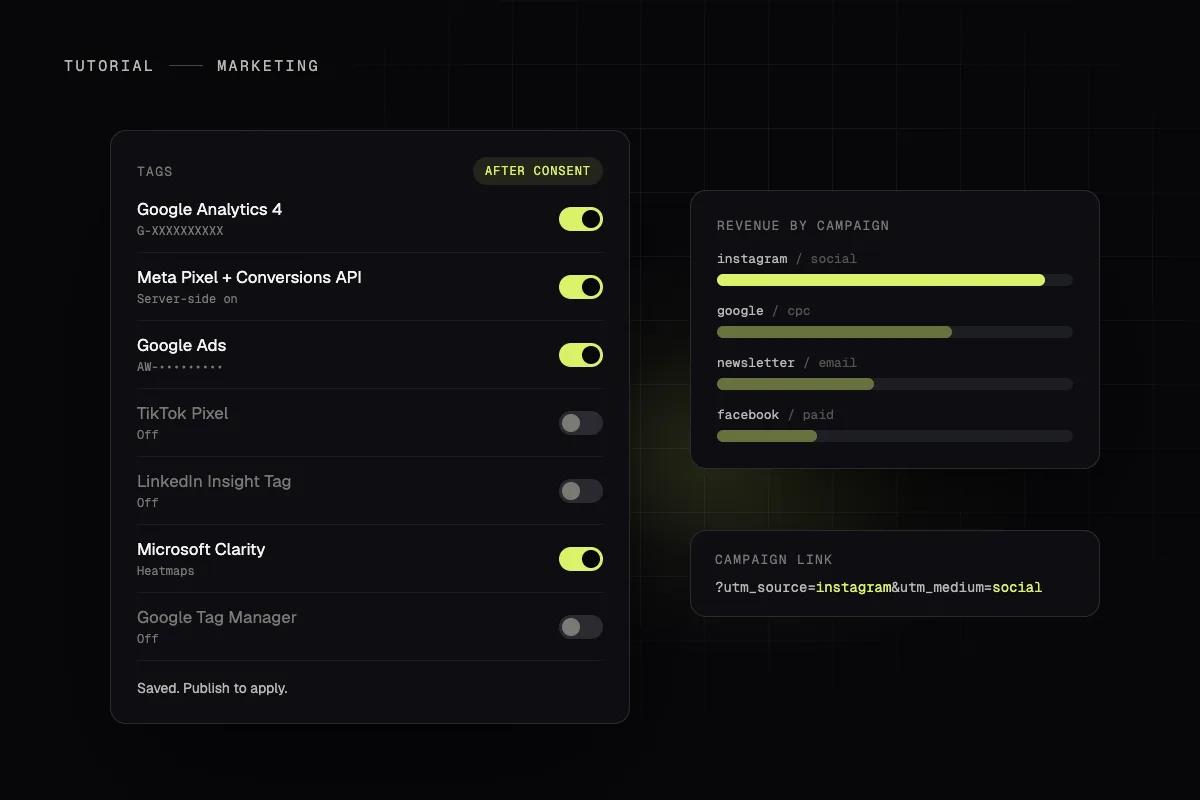
Adding Google Analytics or a Meta Pixel to a website usually means pasting a snippet into the page and hoping it is in the right place. Then you need a cookie banner. Then the tags fire before anyone consents, purchases are counted twice, and nobody can say which ad paid for itself.
In Dunea, marketing is set up in one place, the Marketing panel, and none of it is code you paste. You add your IDs; Dunea puts everything on your live site when you publish, in the right order and only after visitors consent. Here is how to set it up.
The tags you can turn on
The Marketing panel has a toggle and an ID field for each of these:
- Google Analytics 4: traffic, sources and conversions.
- Google Ads: conversion tracking and remarketing for your campaigns.
- Meta Pixel + Conversions API: Facebook and Instagram ads.
- TikTok Pixel: TikTok ad conversions.
- LinkedIn Insight Tag: B2B ad conversions and audiences on LinkedIn.
- Microsoft Clarity: free heatmaps and session recordings.
- Google Tag Manager: for managing any other tags yourself.
Turn on the ones you use and paste each ID. You'll see Saved. Publish to apply. Your tags go live the next time you publish.
Nothing runs in preview
Tags run on your live site, after consent, and never in preview. That is deliberate: building and testing your site doesn't fill your analytics with your own clicks or confuse your ad accounts with test purchases.
It also means an empty GA4 report before you publish is expected. To check a tag is working, publish, open your live site, and look at GA4's Realtime view or Meta's Test Events.
Cookie consent, handled
Dunea shows the cookie banner for you, and each tag waits for the consent it needs before it loads. You choose the mode in the Cookie consent section:
- Opt-in: nothing loads until the visitor agrees. This is the mode for visitors in the UK and EU, where consent comes first.
- Notice: the visitor is told about cookies, without having to agree first.
Google Consent Mode v2 defaults are set for you. If you want a Cookie settings link in your footer, ask Dunea for one; it opens the same consent choices again.
Know which campaigns bring revenue
This is the part most small sites never get. When someone lands on your site from a link with UTM tags, or from an ad click, Dunea remembers where they came from: the utm_ tags, the ad click IDs from Google, Meta, TikTok and Microsoft, and the referring site. It keeps both the first and the last place they came from.
When that visitor later pays, through a Buy button, your shop or a funnel, the payment carries those details. The Revenue by campaign view in the Marketing panel then shows paid revenue by source, medium and campaign. Not clicks or visits: money.
To make it work, tag your links. The Campaign link builder in the same panel does it for you: paste the page you're linking to, name the source (instagram), the medium (social) and the campaign (diwali-sale), and copy the finished link into your post, email or ad.
Server-side conversions
Browsers block a lot of tracking, so some purchases never reach your ad platforms. For Meta and GA4, Dunea can also send paid purchases from its own server: Meta's Conversions API, and GA4's Measurement Protocol. It does this only when the buyer consented, and the server event is matched with the browser event so a purchase isn't counted twice.
For Meta, add an access token alongside your Pixel ID. For GA4, add the optional Measurement Protocol API secret next to your Measurement ID.
You don't have to do anything to count purchases and leads. A purchase is reported once, when a payment is confirmed as paid, and funnel opt-ins are reported as leads.
Tell Dunea which buttons matter
Not every important action is a purchase. If someone books a free consultation or creates an account, you want to know.
Tell Dunea in the chat:
"Track the Book a free consultation button as a lead, and the Create your account button as a sign-up."
It marks those buttons, and each click is sent to every tag the visitor has allowed. Keep it to the few buttons that matter; buy buttons are already tracked.
Google Search Console
Search Console shows the searches people find you with on Google. Usually, setting it up means verifying that you own the site and submitting a sitemap by hand.
In the Marketing panel, connect Google instead. Dunea verifies the site, submits your sitemap, and then shows your search performance for the last 28 days, with your top queries and top pages. Publish once after connecting to finish verifying.
Two more things in the same panel
- WhatsApp chat button: a floating Chat on WhatsApp button with a message already filled in. Add your number to turn it on.
- Email marketing: send leads, funnel opt-ins and customers to Klaviyo, Mailchimp or Brevo automatically. Only people who ticked an opt-in box are subscribed, and Dunea never ticks it for them.
And the analytics you already have
Every published site on a paid plan also has Dunea's own Analytics, with no setup: visitors, top pages, countries, referrers, devices, how fast your pages load for real visitors, and any errors they hit. Open it from Tools & files. It's a good place to start before you add anything else.
A sensible order
- Publish your site and look at Dunea's own Analytics for a week.
- Turn on GA4 and cookie consent.
- Before you spend on ads, add that platform's tag and use the Campaign link builder for every link.
- Connect Search Console once, and check it monthly.
Next step
Open the Marketing panel in your project at app.dunea.ai, add the one tag you already use, and publish. Then open your live site and watch the visit arrive.